

Campaigns
A Campaign is the workspace where Research, Strategy, and Media Plan run for a single piece of work. One Brand can have many Campaigns.
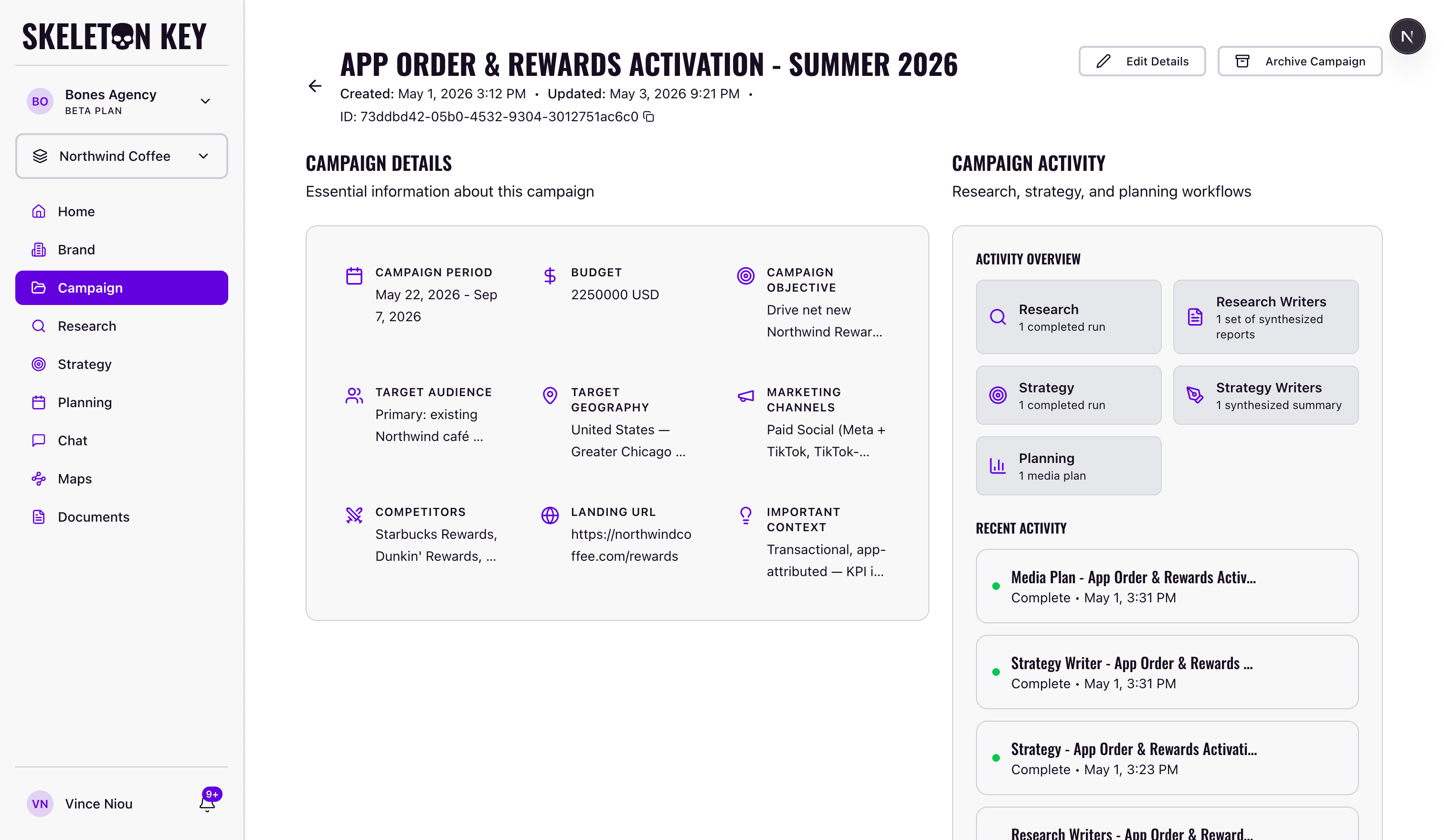
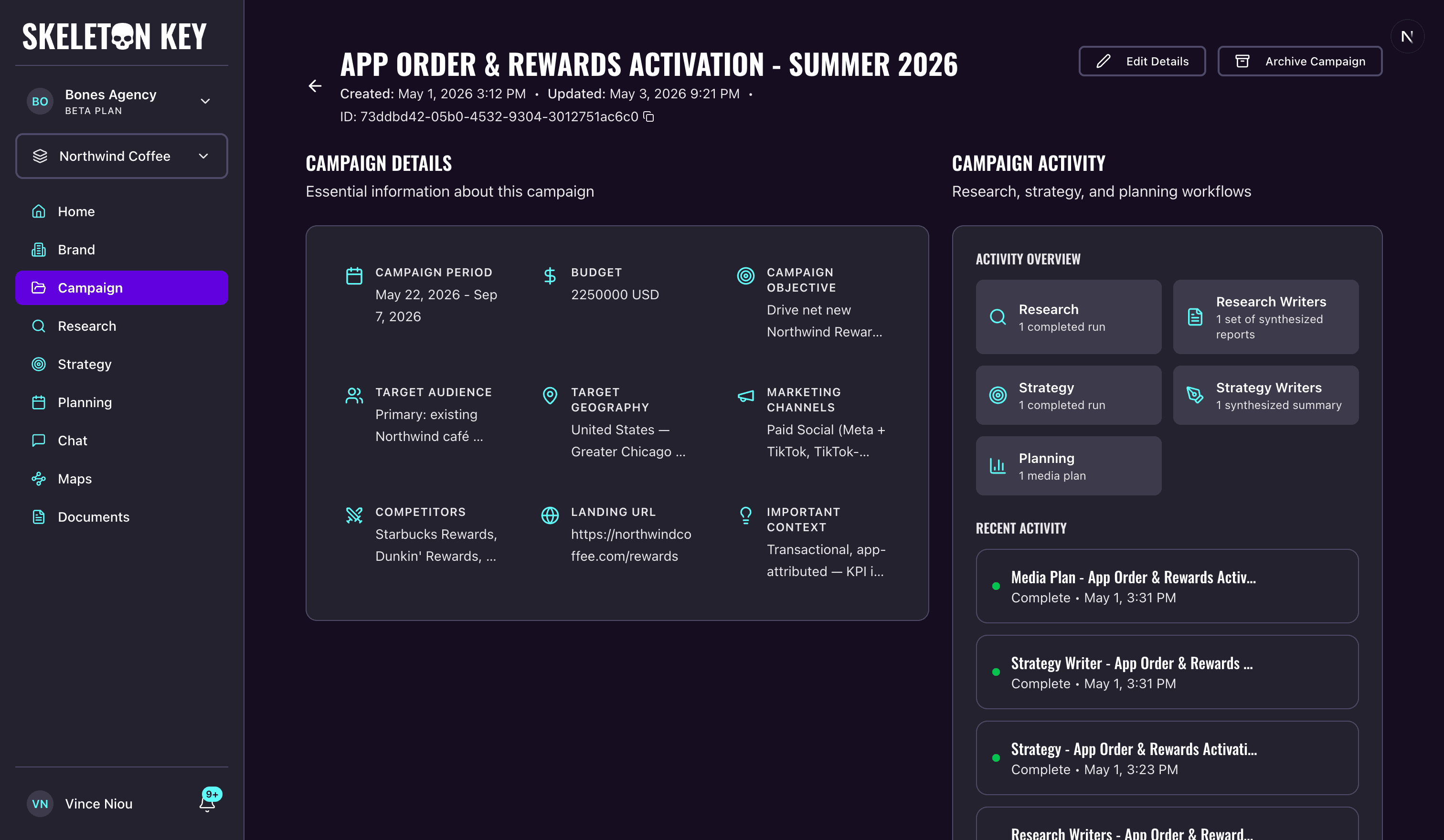
A Campaign is where Skeleton Key does its work. Each one holds a single Research → Strategy → Media Plan cycle for a specific brief, date range, and budget. The Brand Profile feeds into every Campaign under it.
What it does
A Campaign carries a name, objective, flight dates, budget (with currency), and target geography. Optional fields ground the outputs further: audience description, channels, key messages, competitors, landing URL, and important context. Leave them blank to let Research and Strategy define them, or fill them in to constrain outputs from the start.
A Brand can have multiple active Campaigns running at the same time.
Where to find it
Click Campaigns in the left sidebar. The Campaign Center lists every non-archived Campaign for your active Brand. Each card shows the name, flight dates, objective, and budget.
Campaigns are scoped to the active Brand. Switching the Brand selector updates the list. If no Brand Profile exists yet, the Campaign Center shows a guard to finish Brand setup first.
How it works
- Click New Campaign in the Campaign Center.
- Choose a starting point: fill the Campaign Details tab manually, or go to Upload Brief to parse an existing document.
- If uploading a brief: PDF, .docx, .md, .csv, and .xlsx are accepted, up to 10 MB. Click Extract Data from Brief. The extractor parses up to 12 fields and pre-fills the form; a toast confirms how many fields it found.
- Complete the required fields: Campaign Name, Campaign Objective, Start Date, End Date, Budget, and Target Geography. The form auto-saves a draft locally every 500 ms. The draft expires after 24 hours.
- Click Create Campaign. The app opens the new Campaign's detail page.
From the detail page, you can run Research, Strategy, and Media Plan one phase at a time from their own pages, or run all three back-to-back from the end-to-end chain card at the top.
What you can adjust
Open any Campaign and click Edit Details. All fields are editable, including the name. Brief re-extraction is not available in the edit modal; if you need to re-parse a brief, archive the Campaign and create a new one.
Click Archive Campaign to remove it from the active list. The data is not deleted, and there is no bulk archive.
Viewer-role accounts can read Campaign details but cannot create, edit, or archive.
Limits and considerations
- Brief extraction is best-effort. Heavily formatted PDFs, image-only documents, and complex tables often extract fewer fields. The form highlights any fields that came back empty.
- Unsupported file types fail at upload. Only PDF, .docx, .md, .csv, and .xlsx are accepted.
- Archived Campaigns have no restore path in the current UI.
- One active Campaign at a time. Research, Strategy, and Media Plan always operate on whichever Campaign is currently selected in the selector.
Last updated: 2026-05-20