

Quickstart
Brand to media plan in under 30 minutes.
This guide walks you through the full Skeleton Key workflow, from setting up a brand profile to generating a finished media plan. End to end, expect about 20-25 minutes of wall-clock time (excluding optional Research reports, which add another 4-5 minutes). At the end you'll have a research dossier, a four-part strategy, and a tactical media plan ready to review and refine. If you haven't read What is Skeleton Key? yet, start there. It covers what the platform produces and how the five steps connect.
Prerequisite
You've signed up and completed onboarding. You belong to an organization with at least Member-level role and Brand Admin or Standard permissions on the brand you're working with. If you're stuck at "create or join an organization," finish onboarding first. That step is outside this guide's scope.
- 01
Create a brand
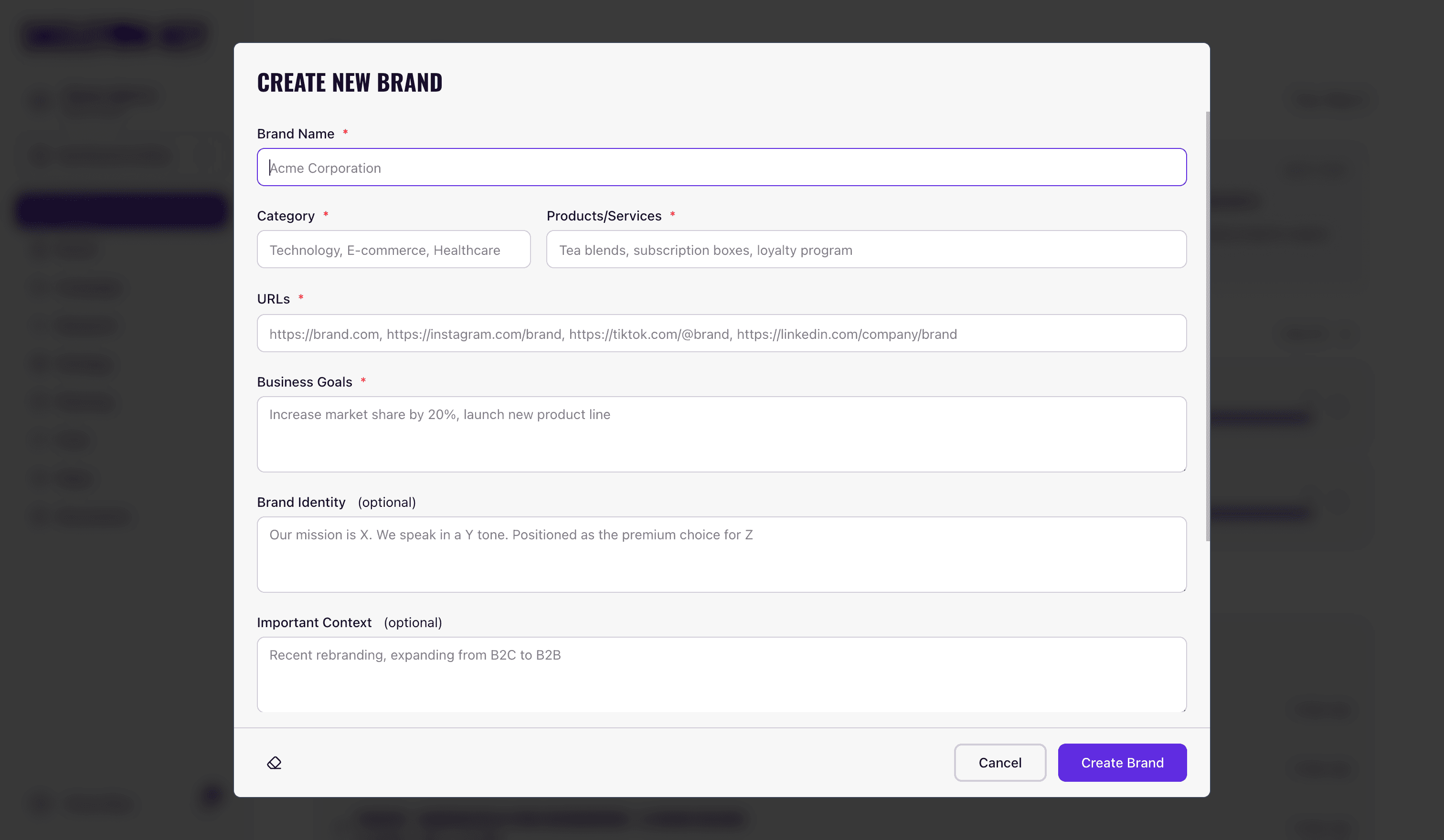
Open the Brand page from the sidebar and click Create brand. Fill in the core fields: brand name, positioning or description, website and social URLs (optional but recommended), and any known competitors.
Save the form. The Brand Profiler agent kicks off automatically on first save. It pulls signals from the URLs you provided, runs web research, and constructs a detailed brand profile. This takes 2-3 minutes.
When it finishes, the Brand Profile page populates with your brand's positioning, target audience, voice, and competitive context.
Optional: attach brand documents
If you have PDFs, Word files, Markdown, CSVs, or Excel sheets that contain brand context (guidelines, previous research, product specs), upload them on the Documents page before or after creating the brand. When you regenerate the profile, you can attach those documents and the Brand Profiler will treat them as high-priority input alongside web research.
- 02
Create a campaign
Inside your brand, navigate to Campaigns and click to create a new campaign. Fill in the brief: campaign name, objectives, target audience, budget, timeline, landing URL, and any campaign-specific competitors.
Save the form. The campaign now exists inside the brand. No agents run at this step. Creating the campaign brief gives the Research, Strategy, and Media Plan agents the campaign-level context they need to produce aligned outputs.
- 03
Run Research
Navigate to Research from inside the campaign and launch the workflow. Five analyst agents run in parallel: Category, Competitor, Consumer, Culture, and Social. Each covers a distinct dimension of market intelligence.
Research takes about 3-4 minutes. When the run finishes, you have five individual analyst outputs. You can optionally generate a synthesized executive one-pager and a long-form narrative research report from those outputs (another 4-5 minutes).
Running Research at the brand level
Research can also be initiated from the brand level, outside of any campaign. For this walkthrough, run it from inside the campaign so the outputs are scoped to your campaign brief and feed directly into Strategy and Media Plan.
- 04
Run Strategy
Navigate to Strategy from inside the campaign and launch the workflow. Four strategists run in sequence (Goals, Audience, Communication, Media), each picking up from the previous strategist's output. A Strategy Summary then unifies all four into a single executive document.
Strategy takes about 8-10 minutes for the four strategists, plus another 2-3 for the Strategy Summary. When it completes, you have four individual strategy outputs plus the summary, all grounded in your research and campaign brief.
- 05
Generate the Media Plan
Navigate to Media Plan from inside the campaign and launch the workflow. The planner builds a tactical document from your strategy and campaign brief: plan overview and Goals, communications and media pillars, geo-language budget allocation, flighting phases, channel budgets with bid strategies, audience-to-channel mapping, and auto-generated UTM tracking URLs. Budget charts update automatically across all plan dimensions.
Media Plan generation takes about 6-8 minutes. Once it lands, click Edit to enter edit mode. You can adjust budgets, modify flighting, and make other changes; edits persist as a working draft. When you're ready to finalize, click Save to commit a new Ready version. A validation banner flags any budget mismatches across total, flight, channel, and geo levels but does not block save. Once the plan is Ready, you can export it to Excel or Markdown.
When something goes wrong
If a workflow takes longer than the expected time range, one likely cause is a temporary issue with the underlying model API. A page reload usually restores the correct state. If a workflow shows as failed, you can rerun it from the same page without losing your campaign brief or prior outputs.
If an output feels off or misses the mark, use the Refine feature on that phase rather than rerunning from scratch. Refine lets you submit targeted feedback and re-runs only the agents that need updating, preserving the rest. See the Refine workflow guide for details.
For budget validation errors when saving an edited media plan, the error messages identify which levels are out of alignment. Adjust the flagged rows and save again.
If you hit a UI issue (a section that doesn't load, an output that appears blank), a manual page reload typically resolves it. For anything that persists or reproduces consistently, see Limitations & caveats.
What's next
Core concepts explains the underlying structure: how orgs, brands, campaigns, and runs relate, and what "current run" means for version history. For per-phase detail, see Research, Strategy, and Media Plan. When you're ready to iterate on your first set of outputs, the Refine workflow guide covers the full feedback and versioning model.
Last updated: 2026-05-05